Showcase Your Faculty: A Complete Guide to Faculty Profiles on BookCPD
Great courses are built around great faculty. That's why we've introduced Faculty & Speakers — a simple way to present the experts behind your events, reuse them effortlessly from one course to the next, and give every speaker a professional profile page they can manage themselves.
Whether you run a single annual symposium or dozens of courses a year, here's why it's worth doing — and everything the feature can do for you.
Why add your faculty?
Listing your faculty isn't just a finishing touch — it does real work for your event:
- Effortless communication. With your speakers organised in one place, you can email them about the event, share schedules and updates, and issue their certificates and badges — all without digging through spreadsheets or old email threads.
- Stronger engagement. Delegates book courses because of the people teaching them. Named experts with photos, qualifications and biographies build trust and excitement, and because every profile lists the sessions they're speaking at, your whole programme feels more professional and connected. Faculty are proud to share their own profile pages too — putting your event in front of their networks.
- Greater visibility — and more bookings. Every faculty profile and the searchable directory add rich, keyword-relevant content to your website — names, specialties, institutions and topics that search engines index and rank. When your faculty link to and share their profiles, that traffic flows straight back to your events. More discoverability means more of the right delegates finding you — and more bookings.
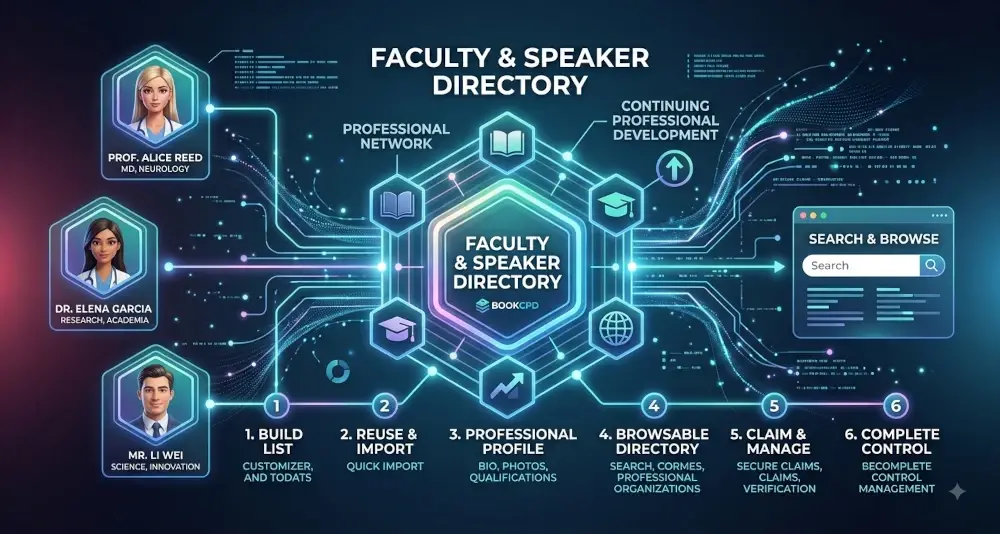
1. Build a reusable faculty list
From your event dashboard, open Add Faculty to start building the line-up for a course. For each person you can capture:
- Title (e.g. Dr, Prof) and full name
- Email — used for communications and to let the faculty member claim their profile later
- Workplace, specialty, city
- Grade / positions — add several roles, one per line (for example, "Consultant Physician" and "President, World Surgical Society")
- Role at this event (Keynote, Chair, Speaker…)
There's also a simple "Show as a speaker on this event's public page" toggle, so you decide exactly who appears publicly — more on that below.
The best part: once you've added someone, they become part of your faculty library. You never have to type their details twice.
2. Reuse faculty across your events
Most organisers work with the same experts again and again. Two tools make that effortless.
Import from your library
Click Import from Library and search your existing faculty by name or email. Add anyone to the current event with a single click — no re-typing, no duplicates.
Copy from another event
Running a follow-up course with the same panel? Use Copy from Event, pick one of your previous events, and bring its whole faculty set across in one go. Duplicates are skipped automatically, and copied faculty start hidden so you can review before publishing.
3. Every faculty member gets a profile page
When faculty are shown publicly, each one gets a polished profile page that helps delegates get to know them — and helps your event look its best. A profile can include:
- Photo, title and name (shown as "Dr Jane Smith")
- Qualifications (e.g. MBBS, MD, FRCP) and specialty
- Positions and roles, listed line by line
- A biography, workplace and links to their website and social profiles
- Speaking at — the upcoming events they're part of
- Past events — a track record that builds credibility
- A spam-protected Contact button (their email address is never shown publicly)
Every published event a faculty member takes part in is listed on their profile automatically — so a single, up-to-date page follows them across all your courses.
4. A browsable faculty directory
All of your publicly-featured and claimed faculty appear in a searchable Faculty & Speakers directory. Delegates can browse by name, specialty, workplace or city and click through to any profile — a great showcase of the expertise behind your programme.
5. For faculty: claim and manage your own profile
Faculty aren't just listed — they can take ownership. When someone is added, we email them to let them know, and they can claim their profile in two ways:
- By clicking "This is me — claim profile" on their profile page when signed in with a matching email, or
- Via a secure claim link we send by email.
Once claimed, the faculty member is in full control of their own page — their photo, bio, qualifications, positions and social links — and any updates flow through to every event they appear on. They can also hide their public profile at any time, without affecting their certificates or event records.
6. You (and your faculty) stay in control
- Public vs internal. Faculty only appear publicly when you switch them on. Add them for internal purposes (communications, certificates, badges) without publishing anything.
- Transparency. Faculty are notified when they're added and told whether their details are shown publicly or kept internal — good practice, built in.
- No inbox spam. The Contact button emails faculty through a protected form; their address stays private.
- Shared, not duplicated. Once a person claims their profile, other organisers can feature them too — instantly if they've opted in, or by sending a quick request for approval — so the same expert is never re-created from scratch.
Getting started
- Open your event and go to Add Faculty.
- Add your speakers, or Import from Library / Copy from Event if you've used them before.
- Tick Show as a speaker for anyone you'd like to appear publicly.
- Add a photo and bio via the Profile link — or invite your faculty to claim and complete their own pages.
- You can also see our 'How To' page on adding faculty and speakers by follwing this link
That's it. In a few minutes you'll have a professional, reusable faculty line-up that makes your events shine — and gives your speakers a home they're proud to share.