Organiser How-To
Faculty
List the speakers, chairs and other faculty for your course. Each faculty member can have a public profile that lists the events they speak at, which they can claim and manage themselves. Faculty you add are saved to your library, so you can add them to other events without re-typing.
Where to find it: Open your event → Event Dashboard → Delegates and Faculty. Click "Add Faculty". From here you can Add Faculty, Import from Library, or Copy from Event.
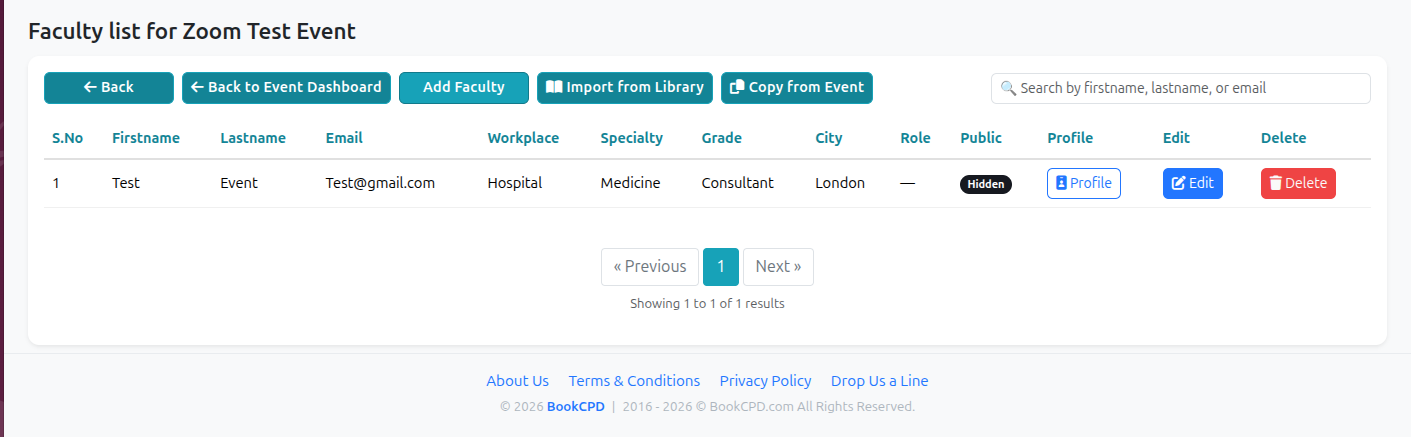
Step-by-Step Guide
Add Faculty to a Course
On the Faculty list page, click Add Faculty. Fill in firstname, lastname and email (required). Workplace, specialty, grade, city and role (e.g. Keynote, Chair, Speaker) are optional. Tick Public if this person should appear in the event's speaker section and the public faculty directory. Click Add.
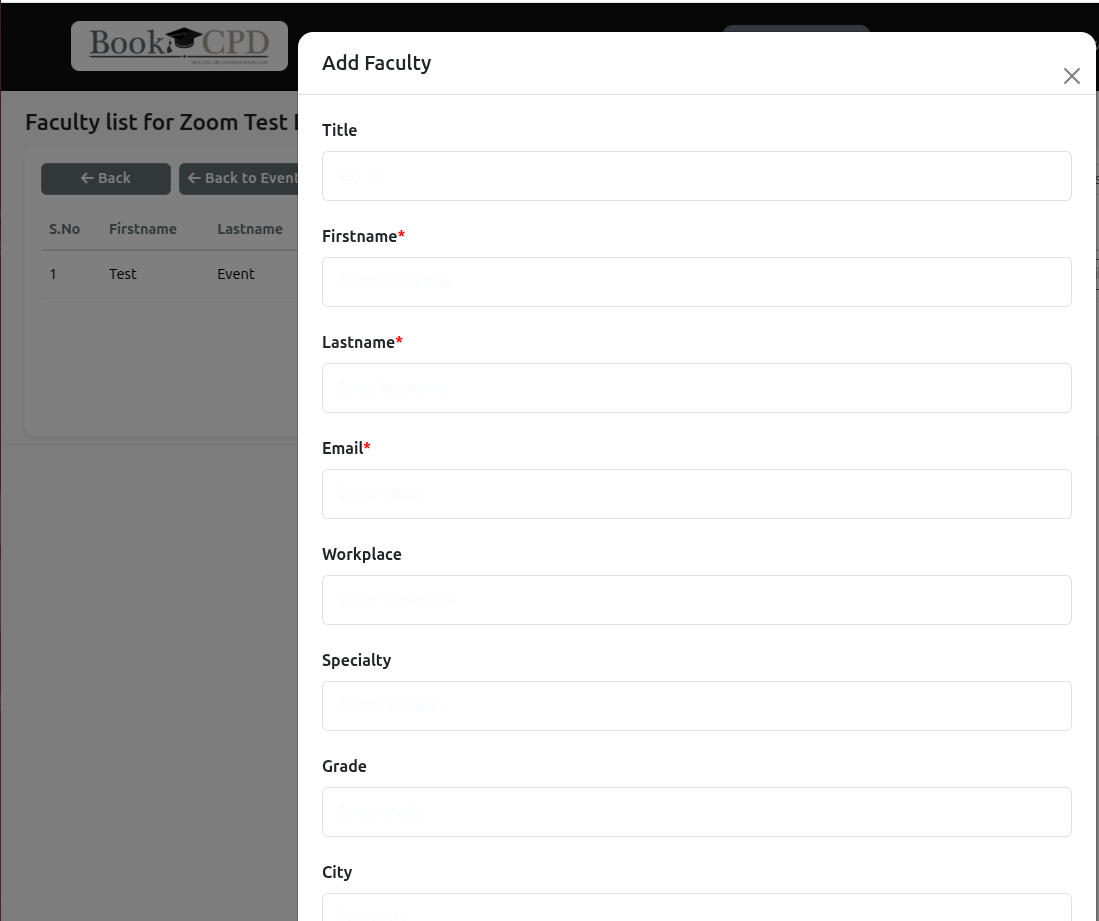
Everyone you add is also saved to your personal faculty library, ready to add to other events.
Add Existing Faculty
Instead of re-typing people you have added before, bring them in from your library or from another event.
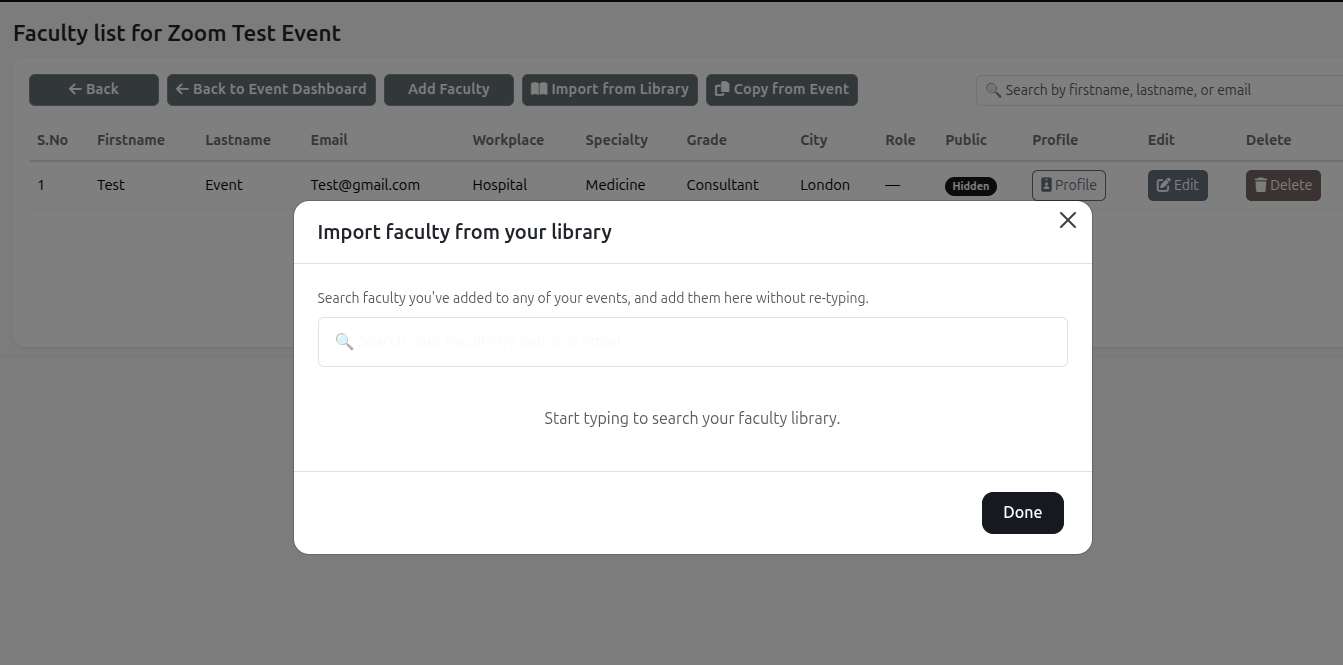
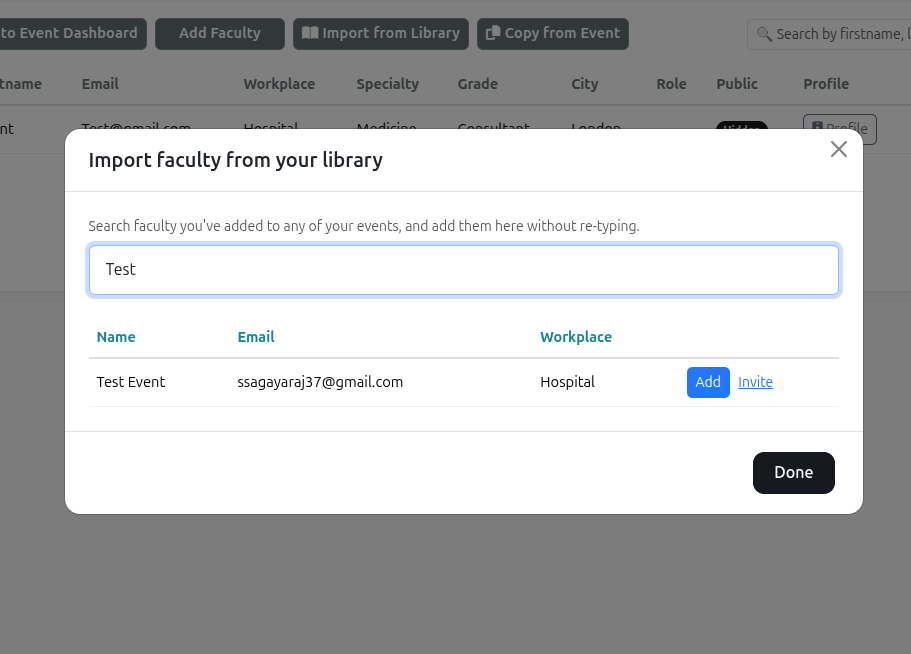
Import from Library — click Import from Library, search by name or email, and add with one click. You can also invite them to claim their profile here.
Copy from Event — click Copy from Event, pick a source event from the dropdown, and confirm to copy that event's whole faculty set. Duplicates (same email) are skipped, and copied faculty remain hidden until you choose to show them.
Edit or Remove Faculty
Use the search box to find a person. Click Edit to change their details, then Update. Click Delete to remove them from this event.
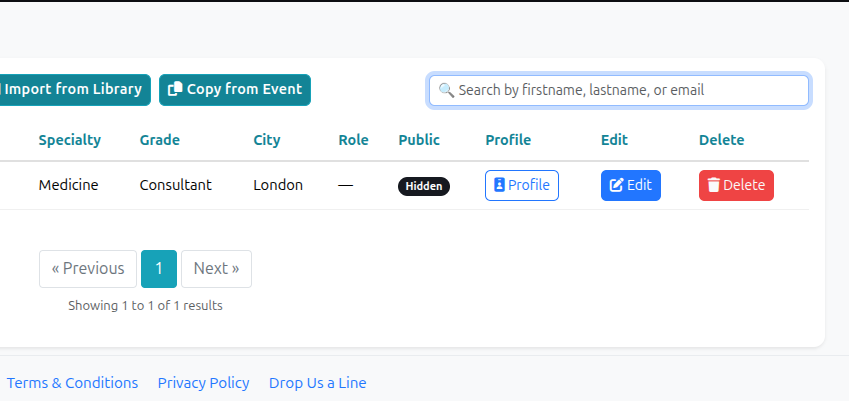
Role and Public settings are per event — the same person can be a Keynote on one event and a Chair on another, shown publicly on one and hidden on another.
The Faculty Profile Page
When a faculty member is set to public, they get a public profile page that automatically lists every published event they speak at, along with their details and an optional contact form. Two visibility controls work together:
- Public (per event) — set when you add or edit the person; controls whether they appear in that event's speaker section.
- Profile active / hidden — controlled by the faculty member once they have claimed their profile.
Claiming a Profile
Inviting someone to claim — as the organiser, click Invite next to the person in Import from Library or the faculty table. They receive an email with a secure link to claim and manage their profile.
Claiming (as the faculty member) — sign in with the same email the profile was created with, open the profile page and click Claim, or use the link in the invite email. Once claimed, they can edit their details and hide or reactivate their public page at any time. Hiding the public page does not affect their event, certificate or badge records.
A profile can only be claimed by the person whose email it matches. This keeps profiles under the control of the actual faculty member.
Access Requests
If you try to add a faculty member who has already claimed their profile, the system raises an access request rather than adding them silently. The faculty member is notified and can approve or decline from their profile's Edit page. On approval they are added to your event with the role you requested.
This means faculty stay in control of where their claimed profile appears, while you can still bring in their details without re-typing.
Quick Reference
Add a speaker → Delegates and Faculty → Add Faculty
Add an existing speaker → Import from Library (one person) or Copy from Event (whole set)
Show on the event page → tick Public
Let a speaker manage their own profile → Invite them to claim it
Add a claimed speaker → they approve your access request
Need help?
Contact us at support@bookcpd.com.